User Manual
Everything you can do with Better Trove Tools
A friendly, complete walkthrough of every tool in the app - from tracking daily resets and planning gem builds to mining unreleased game files and packaging your own mods.
Getting Started
Install once and the app takes care of the rest - it finds your game, keeps itself updated, and runs entirely on your machine.
Install & launch
Up and running in a minute
Better Trove Tools is a desktop app for Windows. It runs on the Microsoft Edge engine already built into Windows 11, so the download stays small and stays up to date automatically.
First-time setup
- Download the installer from the home page or the GitHub releases page and run it.
- Launch the app - it automatically detects your Glyph and Steam Trove installations (Live, PTS, and any custom installs).
- That's it. The dashboard loads with live data and the app checks for updates in the background.
Automatic updates
When a newer release is available, an update button appears in the sidebar. One click downloads the installer, applies it, and relaunches the app for you - no manual reinstalling.
Missing WebView2?
On older Windows builds the runtime may be absent. If the app reports it as missing, install the free Evergreen WebView2 Runtime from Microsoft and relaunch.
The Interface
A quick tour of the bits that are always on screen, no matter which tool you're using.
Always available
Sidebar, search, and status
Finding your way around
- Use the left sidebar to switch between Home, Mod Manager, Modder Tools, Gems & Builds, Calculators, Codexes, Settings, and About. Hit the ☰ burger to collapse it for more room.
- The server clock near the bottom shows live Trove server time - click it for world clocks and a time converter.
- Press Ctrl + K anywhere to open Quick Open and jump straight to any tool or action.
Home Dashboard
Your daily briefing. The dashboard talks to the Trove servers and community APIs so you know what's happening without logging in.
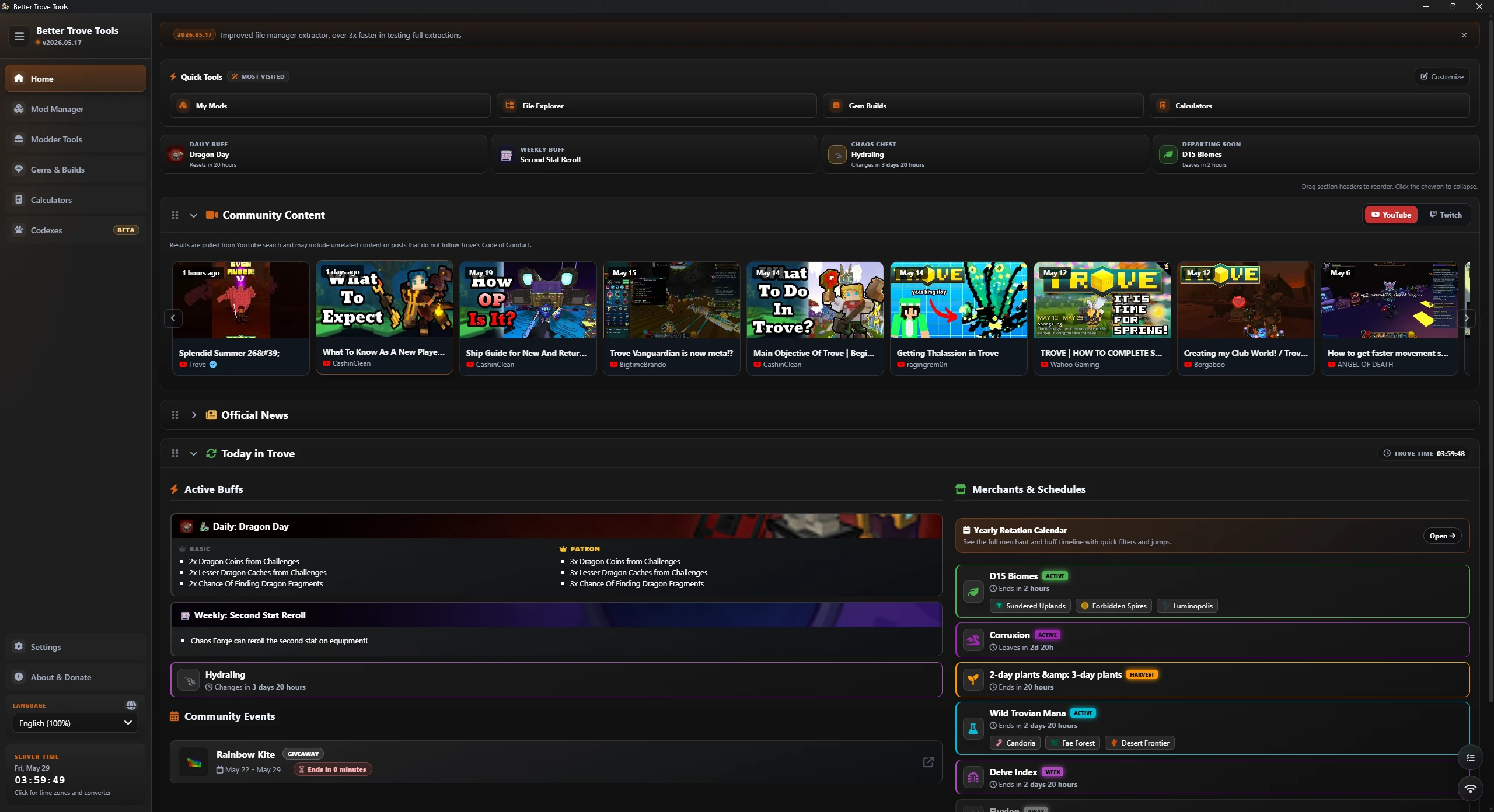
Live tracking
Rotations, merchants & biomes
What you can do here
- Daily & weekly buffs - see today's active bonuses at a glance. Click any buff card to open a schedule of what's coming the rest of the week.
- Merchants - track Luxion, Corruxion, and Fluxion, plus biome-based merchant schedules. Cards show whether they're active now or exactly how long until they arrive. Click a merchant for its upcoming schedule.
- Community content - carousels of current YouTube, Twitch, and BiliBili creators. Click a card to open the stream or video.
- Official news - the live Trove news feed with category filtering and a collapse control.
- Events - active Trovesaurus community events with live countdown timers.
Make it yours
Reorder dashboard sections by dragging them, collapse the ones you don't use, and pin your most-used tools to the Quick Tools tray (automatic "most visited" or fully manual). Toggle community/news sections off entirely in Settings for a calmer page.
Server Time & Clocks
Never miss a reset or mistime an event across timezones again.
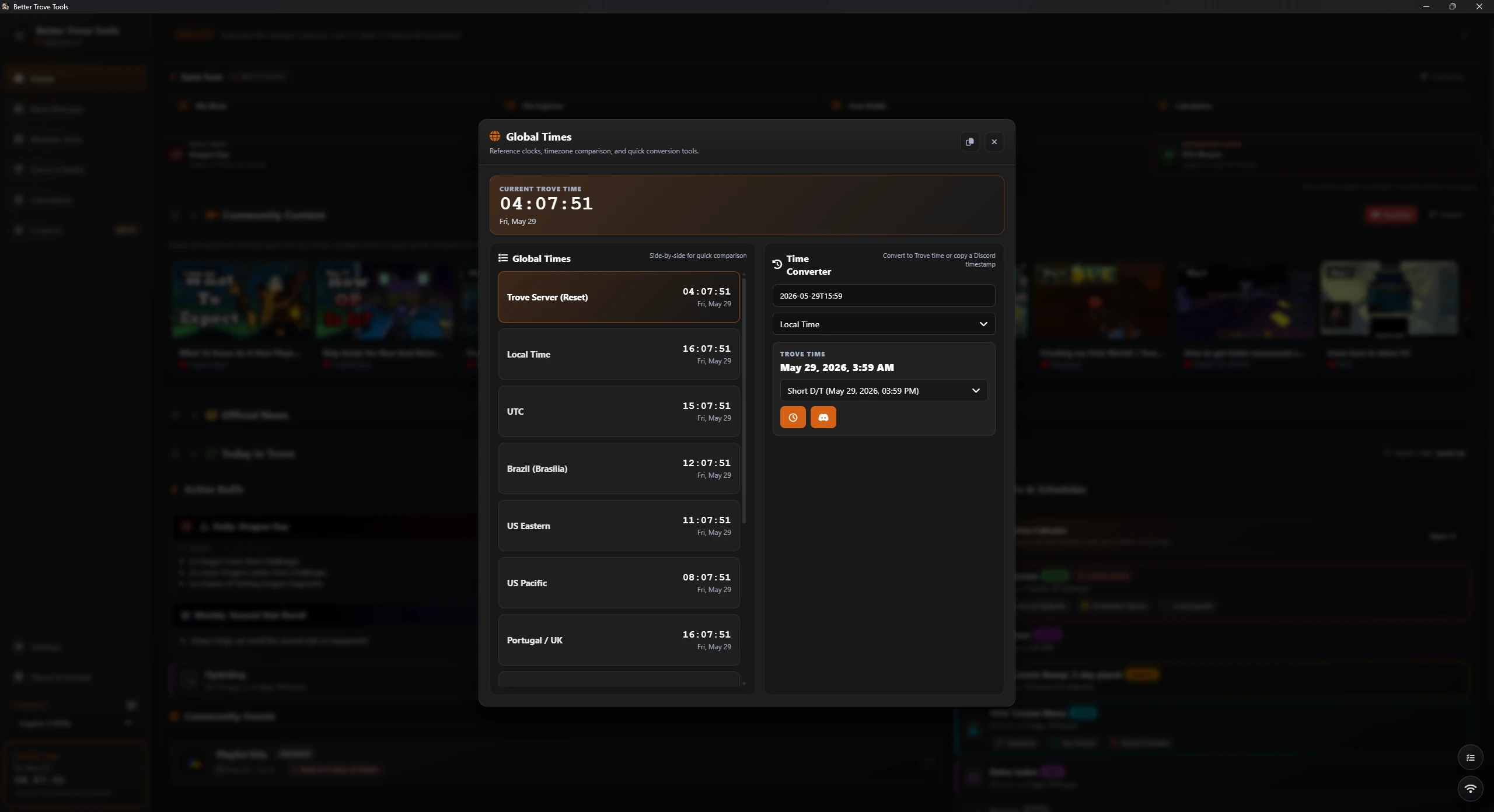
Time tools
World clocks & Discord timestamps
How to use it
- Click the server clock in the sidebar to open the time panel.
- Compare Trove server time side-by-side with major world timezones.
- Pick a date/time, choose its timezone, and the converter shows the equivalent Trove time.
- Copy a ready-to-paste Discord timestamp in any format (short time, relative, full date, etc.) to share event times that auto-adjust to each viewer's local zone.
Gem Builds
Trove's gem system is notoriously fiddly. This tool crunches thousands of combinations and hands you the optimal layout.
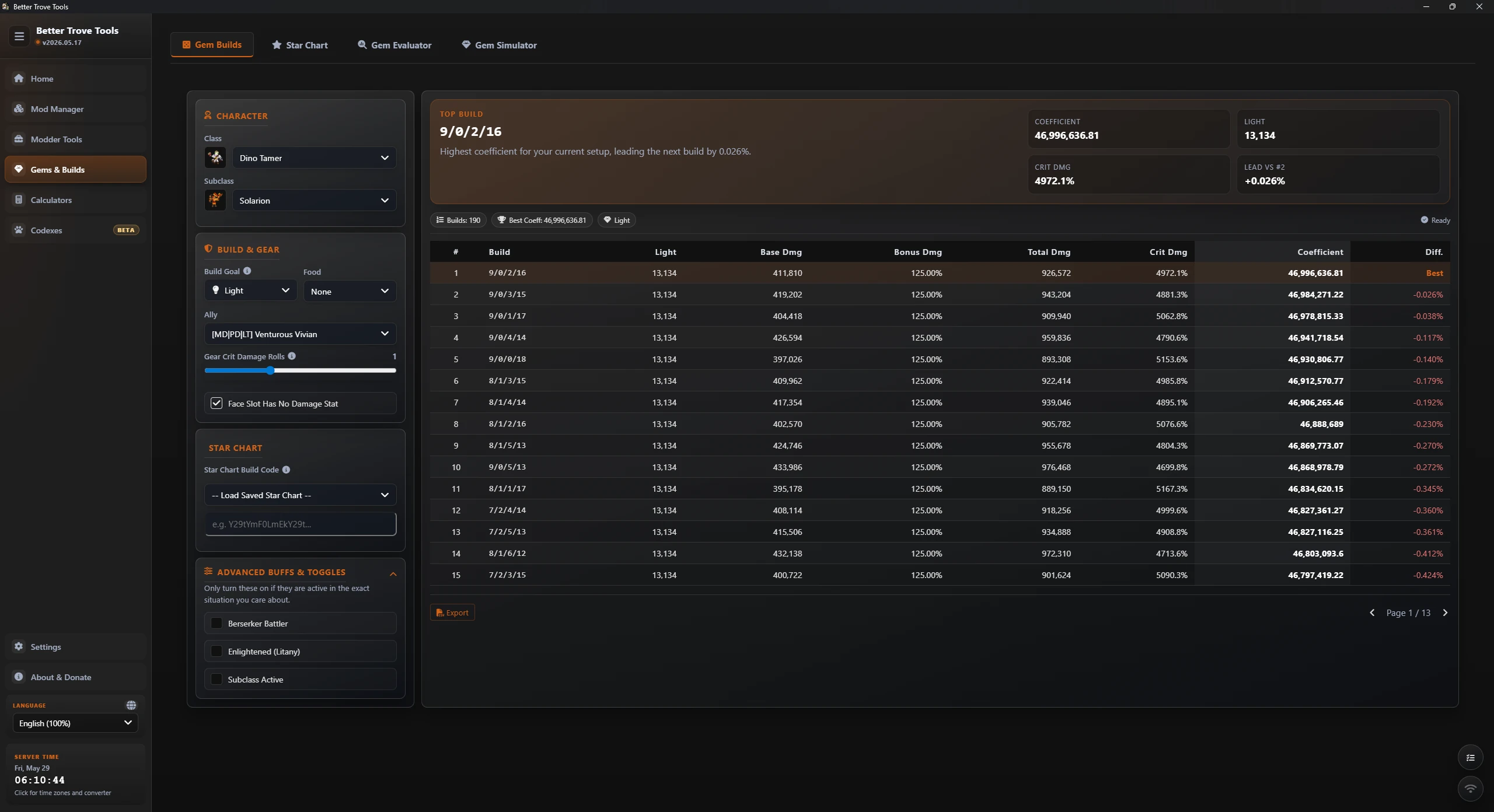
Min-max your damage
Optimal build engine
How to use it
- Select your class and subclass.
- Enter your target Light stat.
- Toggle the buffs you actually run (food, Berserker Battler, and so on).
- Press Calculate.
The engine lists the top builds. The Best row's "Layout" column tells you exactly how many boosts to put on Physical/Magic Damage vs. Critical Damage for the highest output - click the layout to copy it.
Pair it with your Star Chart
Paste a Star Chart build code (see below) into the build engine to factor your astral stats into the calculation for a truly personalized result.
Star Chart
An interactive, zoomable map of the Trove Star Chart for planning your astral knowledge paths before spending in-game.
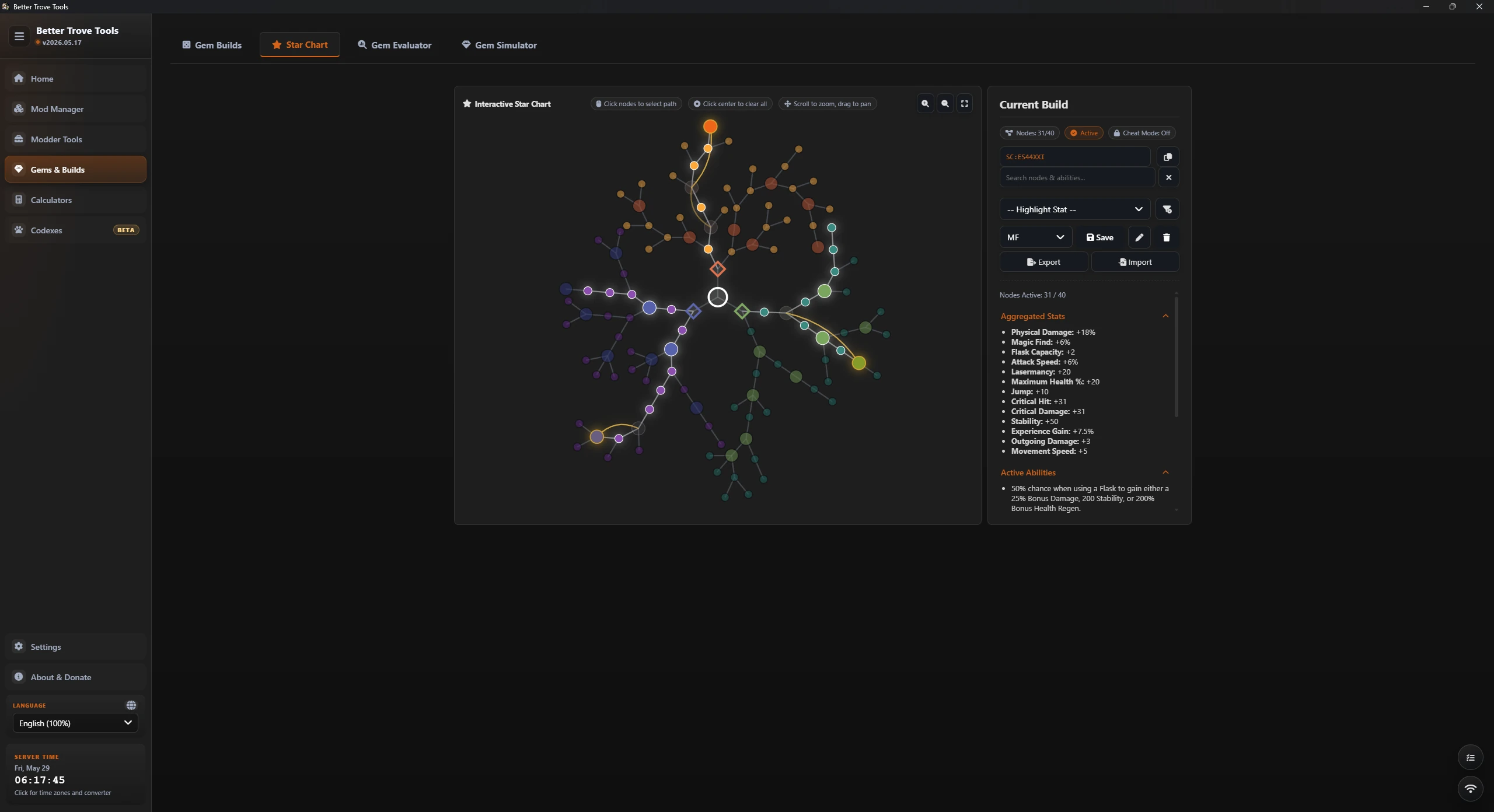
Plan your path
Star Chart visualizer
How to use it
- Click any node to activate it - just like in-game, you must own the connecting nodes first.
- Double-click a major node to auto-fill the entire branch leading up to it.
- Pan by dragging the empty background and zoom with the scroll wheel to navigate the map.
- The summary panel aggregates every stat, ability, and obtainable item you've unlocked and enforces the node limit.
Save & share
The text box holds your build code. Copy it to send to a friend, save it as a reusable template, or paste it into the Gem Builds engine. Saved templates appear in a dropdown for instant loading.
Gem Evaluator
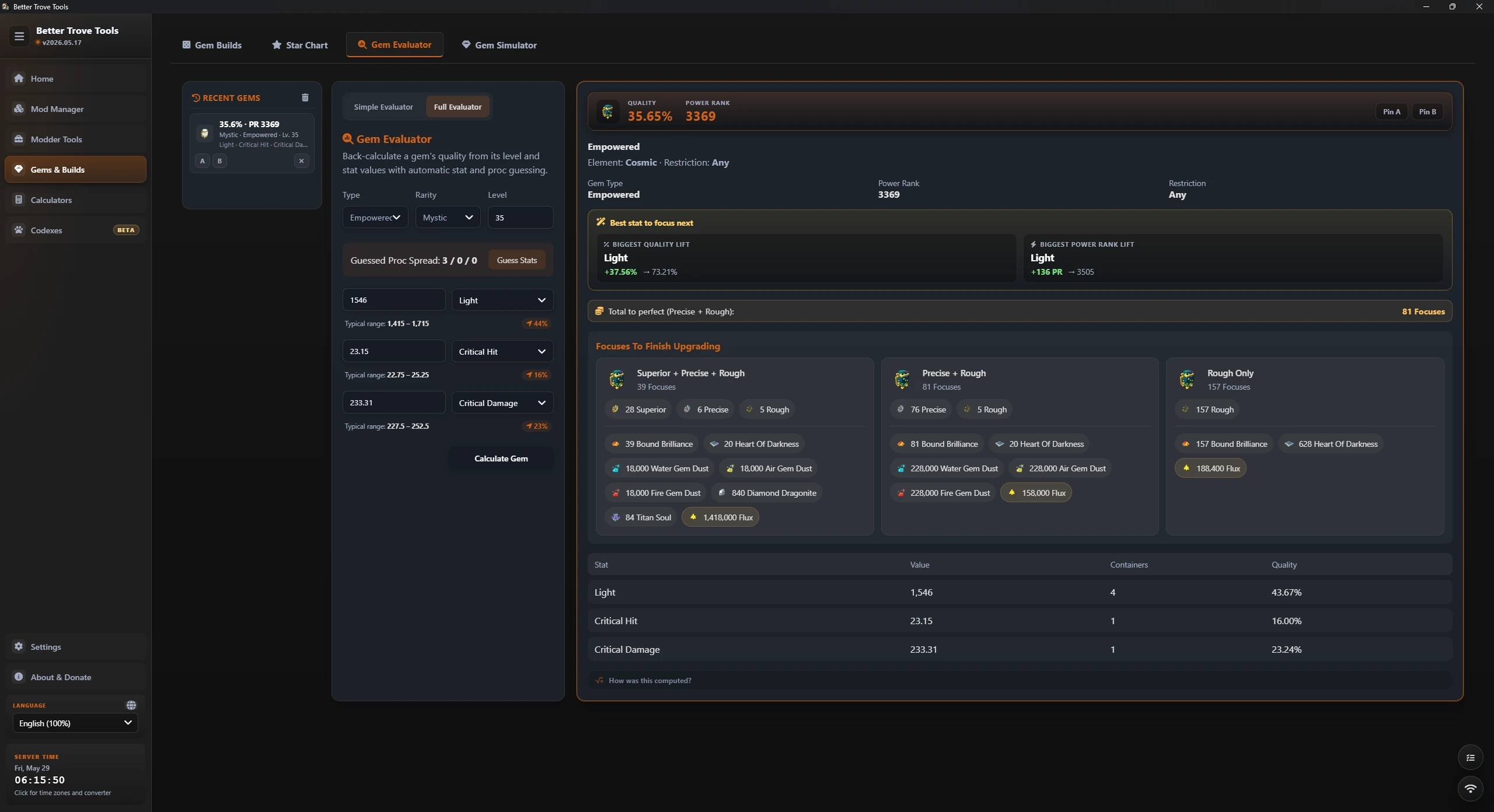
Should you keep this gem, reroll it, or toss it? The evaluator answers that for you.
Judge any gem
Quality & decision helper
Enter a gem's stats and the evaluator rates its quality and rolls, helping you decide whether it's worth your flux and rare materials to level, reroll, or replace. Use it before committing resources to anything in-game.
Gem Simulator
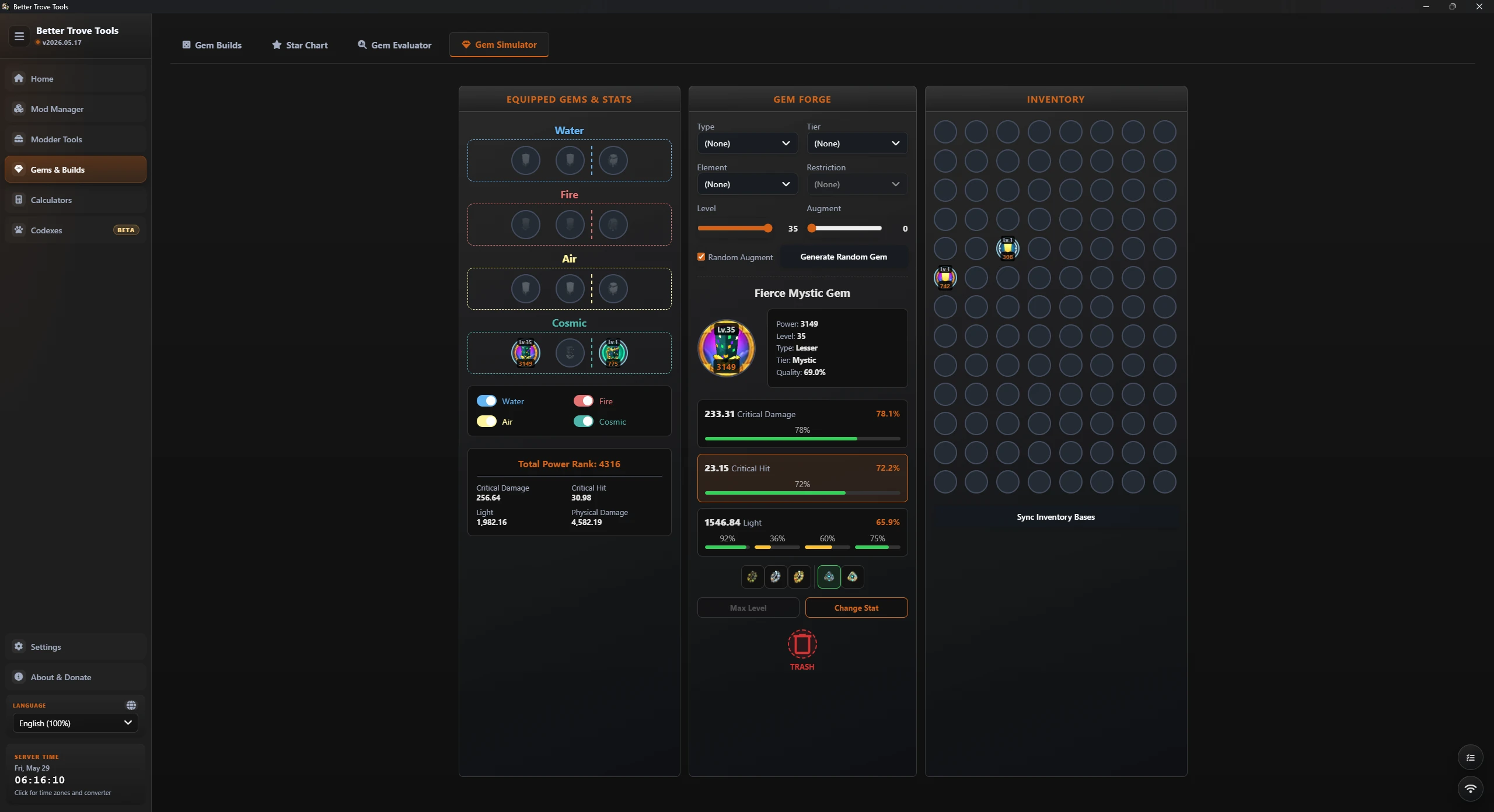
Leveling and rerolling gems in-game costs millions of flux. The simulator lets you experiment for free.
Test before you spend
Gem forge sandbox
How to use it
- Use Generate Gem to create a base gem (Stellar, Fire, Empowered, …) - it lands in your inventory.
- Select the gem, then Level Up to simulate leveling it to 25 or 30.
- Flare - move a boost ("pearl") onto a chosen stat.
- Spark - reroll a stat into a different one.
- Augment - apply augmentation outcomes to push stats further.
- Drag and drop gems into the equipped slots - the app totals your Power Rank and stats, automatically applying the 10% Primordial Dragon buffs.
Calculators
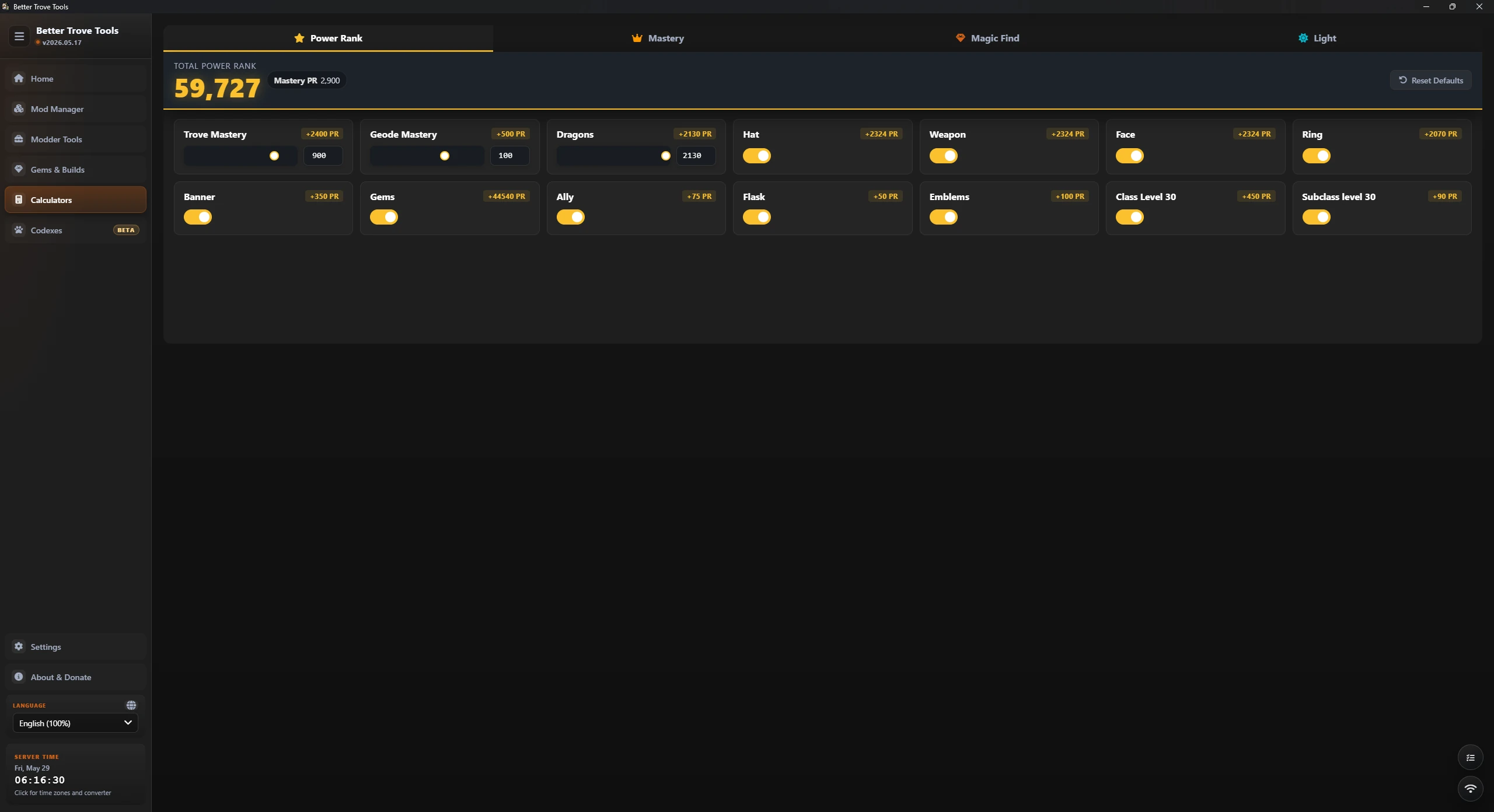
Fast, focused calculators for the four numbers Trove players care about most.
Power Rank
See your full PR potential with a breakdown of contributions from equipment, dragons, gems, and mastery.
Mastery
Plan Trove and Geode mastery, with real-time tracking of PR, Light, and Magic Find gains as ranks climb.
Magic Find
Optimize loot drops by combining Patron, dragons, and weekly buffs - with optional Star Chart integration.
Light
Work out your Light total from gear, gems, mastery, and other sources.
Codexes Beta
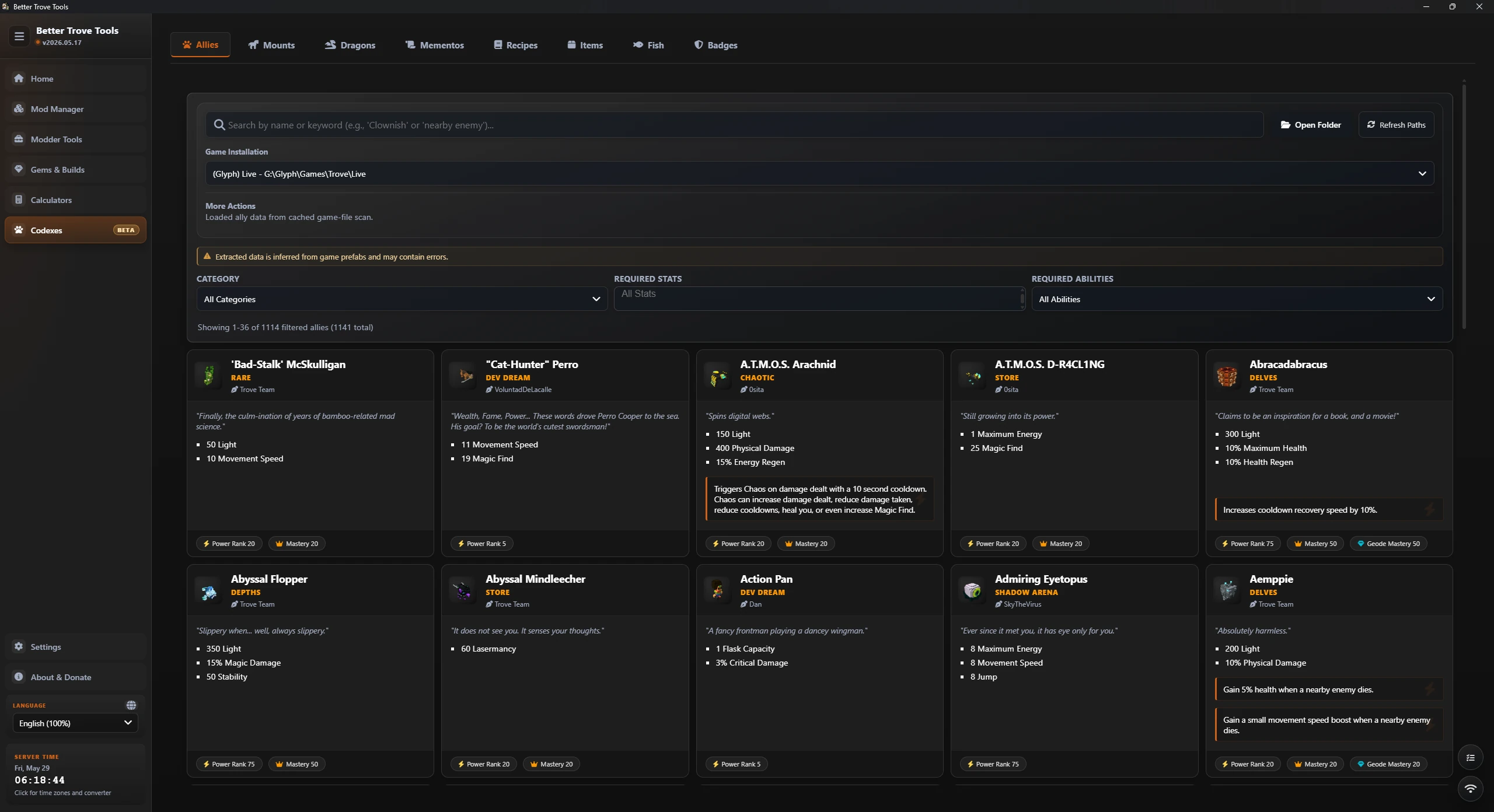
Searchable encyclopedias built live from your installed game files - so they stay current with your build instead of relying on bundled static data.
Decoded from game data
Eight built-in catalogs
Allies
Category, stats, abilities, mastery, geode mastery, designer, blueprint, and decoded power rank.
Mounts
Category, movement stats, mastery, designer, and blueprint data.
Dragons
The dragon-category mounts, broken out for quick reference.
Mementos
Category, mastery, and source context - biome, boss, or creature origin when available.
Recipes
Decoded outputs, ingredient counts, category grouping, and output prefab metadata.
Items
A searchable catalog of decoded game items.
Fish
Every catchable fish with rarity, source, and weight info.
Badges
The badge catalog decoded from game data.
How to use it
- Pick the game installation to read from at the top of the codex.
- Switch tabs between the eight catalogs; each loads on demand and is cached for instant reopening.
- Use the search box and filters to narrow by category, stat, source, and more.
- Hit Refresh after a game update to rebuild a codex from the latest files.
Mod Manager
A built-in app store for mods plus full control over what's installed - no manual file shuffling.
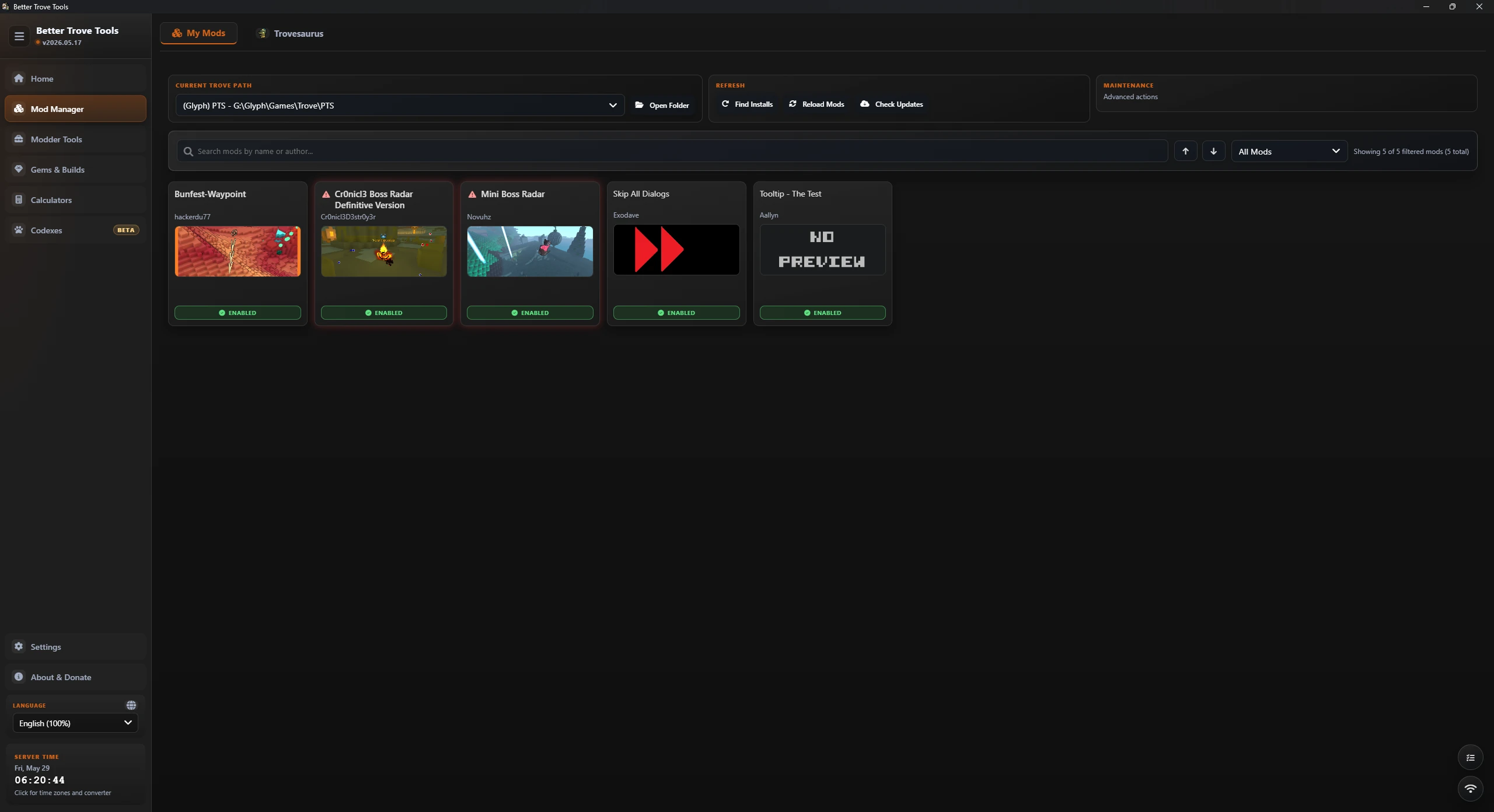
One-click installs
Trovesaurus browser
Browsing & installing
- Open the Trovesaurus tab, search any mod, or filter by category.
- Click install on a mod - it downloads and drops into the correct game folder automatically.
- When an installed mod gets a website update, an update icon appears so you can refresh it in place.
- Preview images and links to the mod's Trovesaurus and author pages are right there in the app.
btt:// deep links
Install buttons on the web can hand off to the app through btt:// links for true one-click installs straight from your browser.
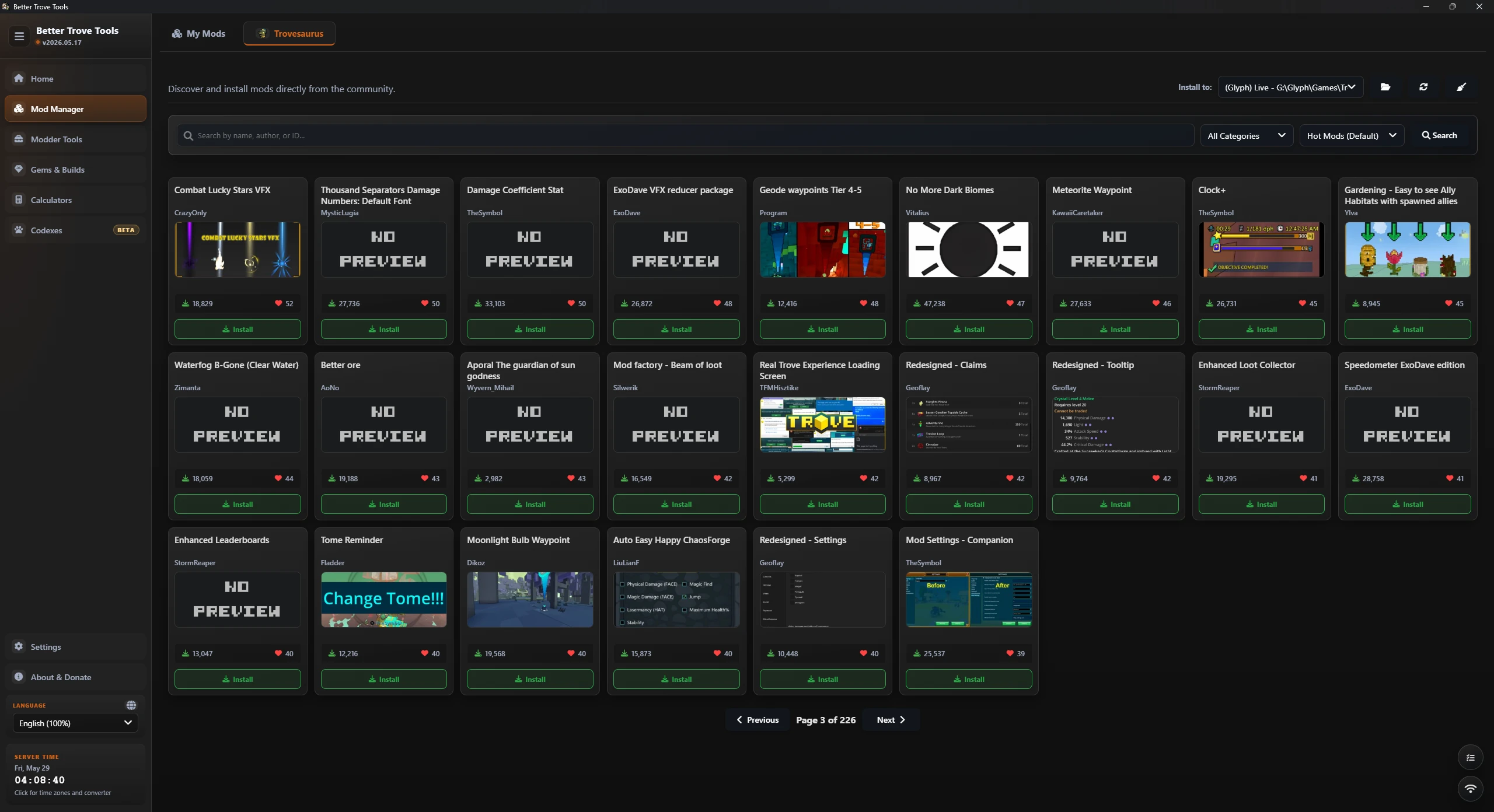
Local control
Your installed mods
Managing what's installed
- The My Mods tab lists everything installed for the selected Trove install.
- Toggle mods on and off without deleting them; update or remove with a click.
- Use Fix Names to rename local files to match their internal titles.
- Search, filter, and quick-jump through long lists.
Conflict detection
A warning marker means two enabled mods overwrite the same game file - only one will actually load in-game. Disable one of the conflicting mods to resolve it.
Modder Tools
A full development studio for creating, editing, and packaging mods - it hides the confusing file structures and compilation steps.
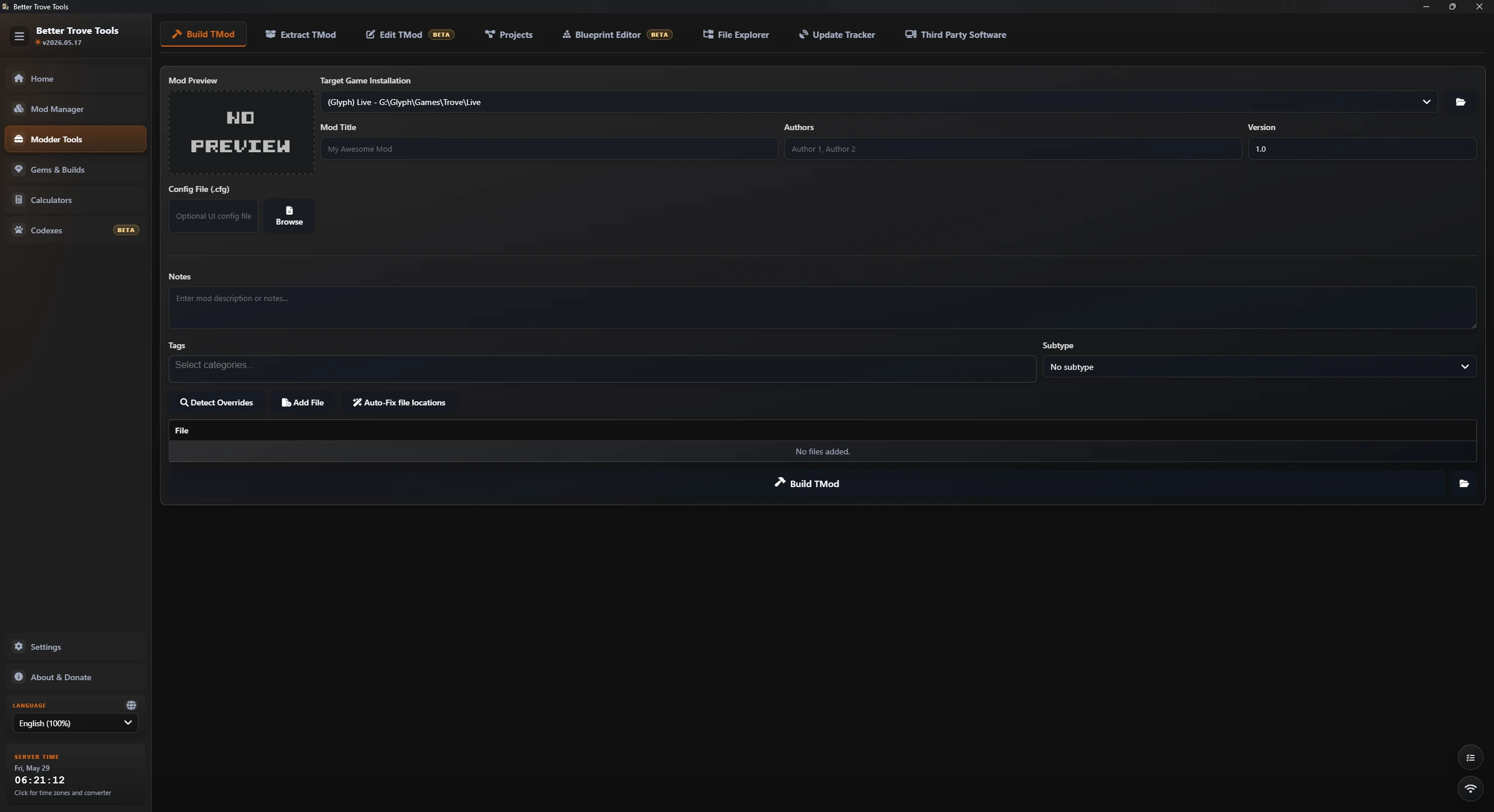
.tmod package from loose files.From files to .tmod
The standard modding workflow
Build a mod step by step
- In the Projects tab, create a project and point it at a folder. Each project keeps versioned workspaces (e.g.
v1.0). - Drop your edited game files into the version folder.
- Click Auto-Structure - the app scans Trove's file dictionary, figures out where each file belongs, and arranges the folder hierarchy for you.
- Click Place Overrides to copy the structured files into the live game so you can Test in Game instantly. Click Remove Overrides when you're done.
- Fill in the mod title, author, and a preview image.
- Click Compile to package everything into a
.tmod, ready to upload to Trovesaurus.
Extract and Edit let you open existing .tmod files to inspect, modify in memory, and recompile them with clean title-based naming. The third-party software directory links out to the common external tools modders use.
Voxel preview
Blueprint Editor Experimental
Open .qb files and Trove .blueprint packages, browse their internal voxel assets, inspect them in 3D, and export back to Qubicle Binary format.
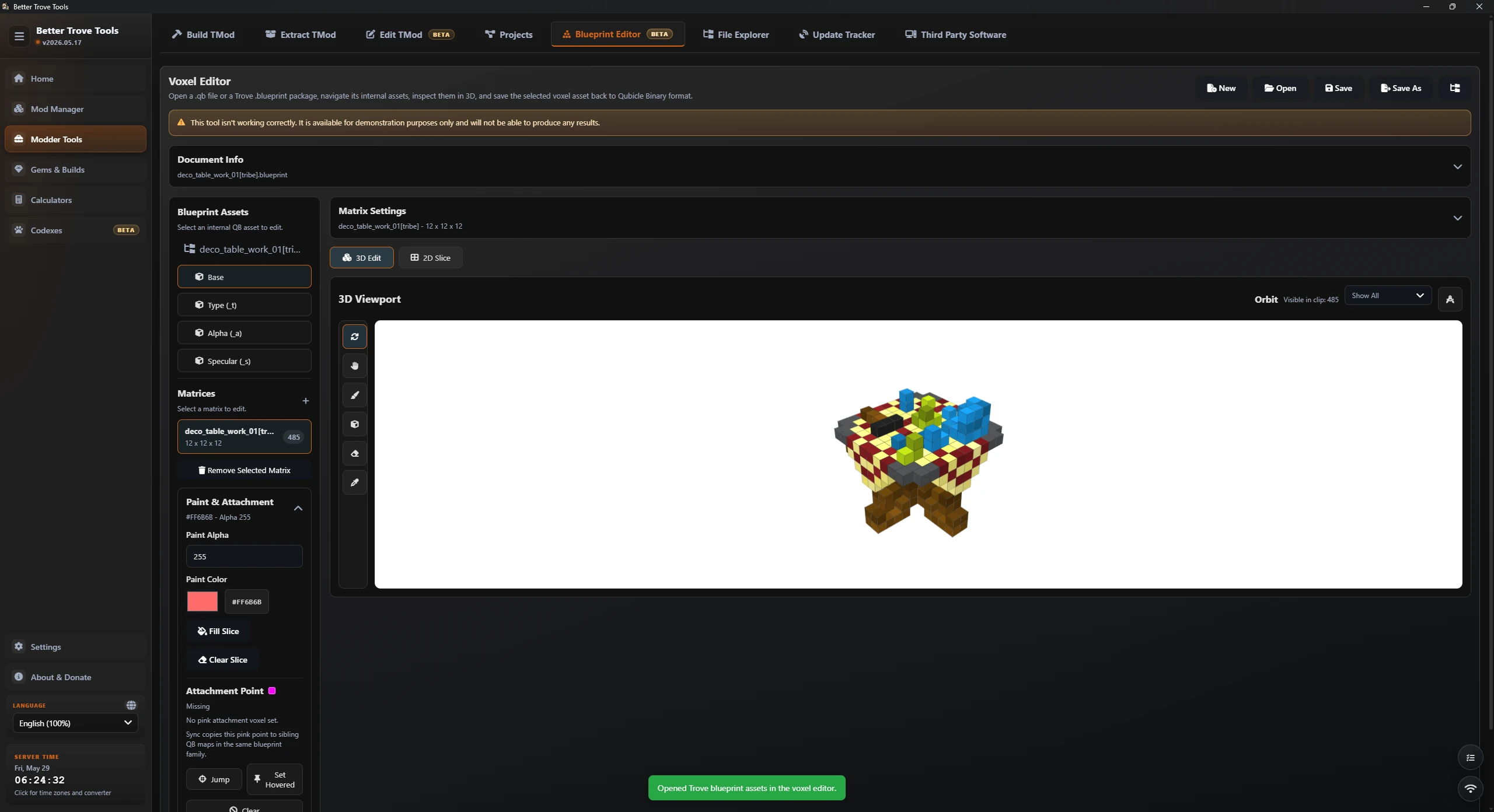
Preview only
The Blueprint Editor is an early preview and is provided for demonstration - treat its output as experimental rather than production-ready.
File Explorer
Trove hides its assets inside large compressed binary archives. The Explorer turns them into a normal, searchable folder tree.
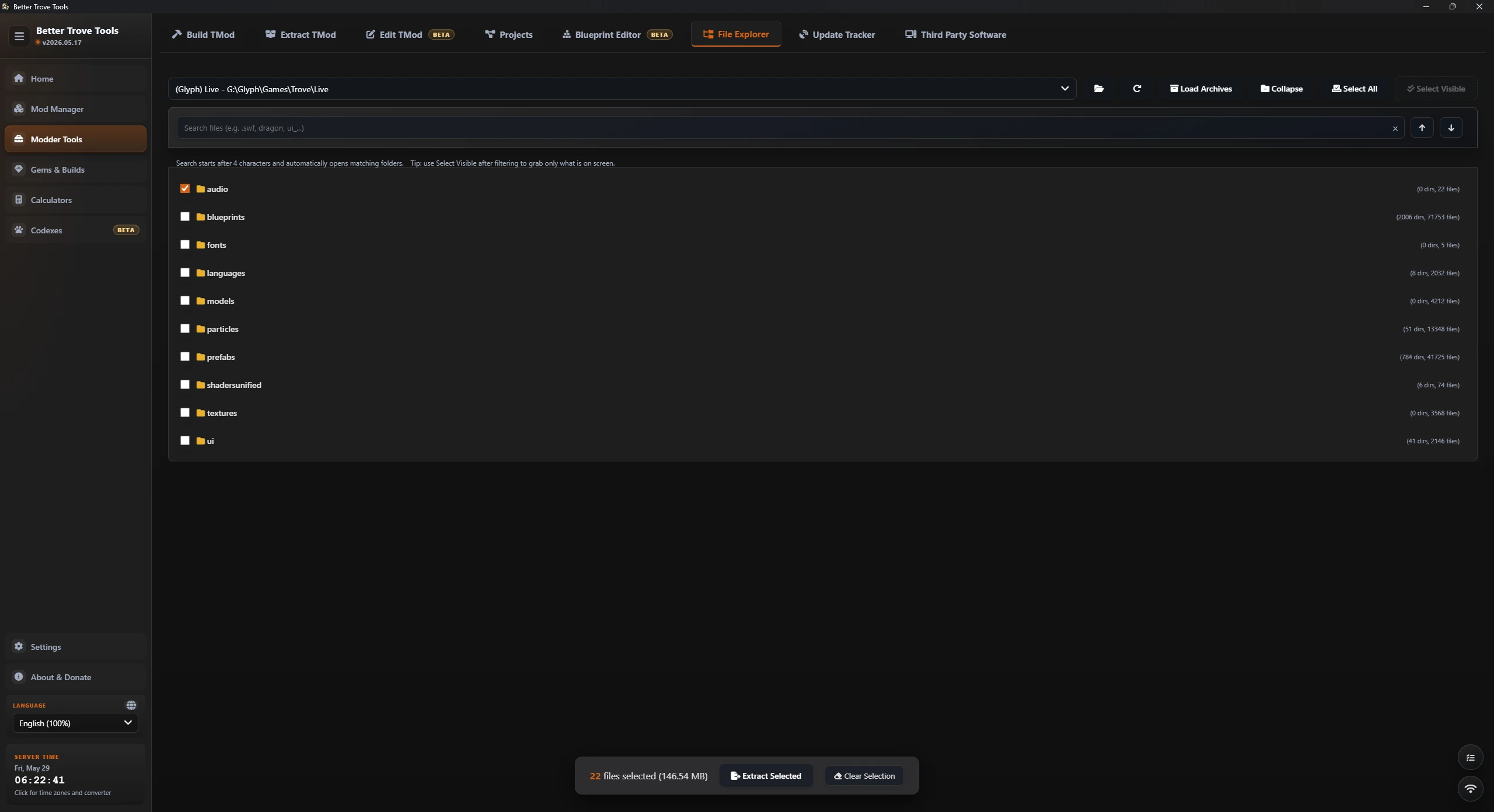
Browse game assets
Archive explorer
How to use it
- Pick a game install and load its archive tree - the app reads the
.tfiindexes and.tfaarchives directly. - Browse the game's internal UI, textures, sounds, and blueprints in a familiar tree view.
- Right-click any file to extract it to your computer.
- Select a folder and use the mass-extraction tools to pull out everything at once.
Fast by design
Archive reading, hashing, and extraction run in parallel across your CPU cores, and previously-loaded trees are cached - so loads and bulk extracts stay quick even on the full game.
Update Tracker
Developers hide upcoming mounts, dragons, and UI changes in the game files weeks before release. The tracker shows you exactly what each patch added or changed.
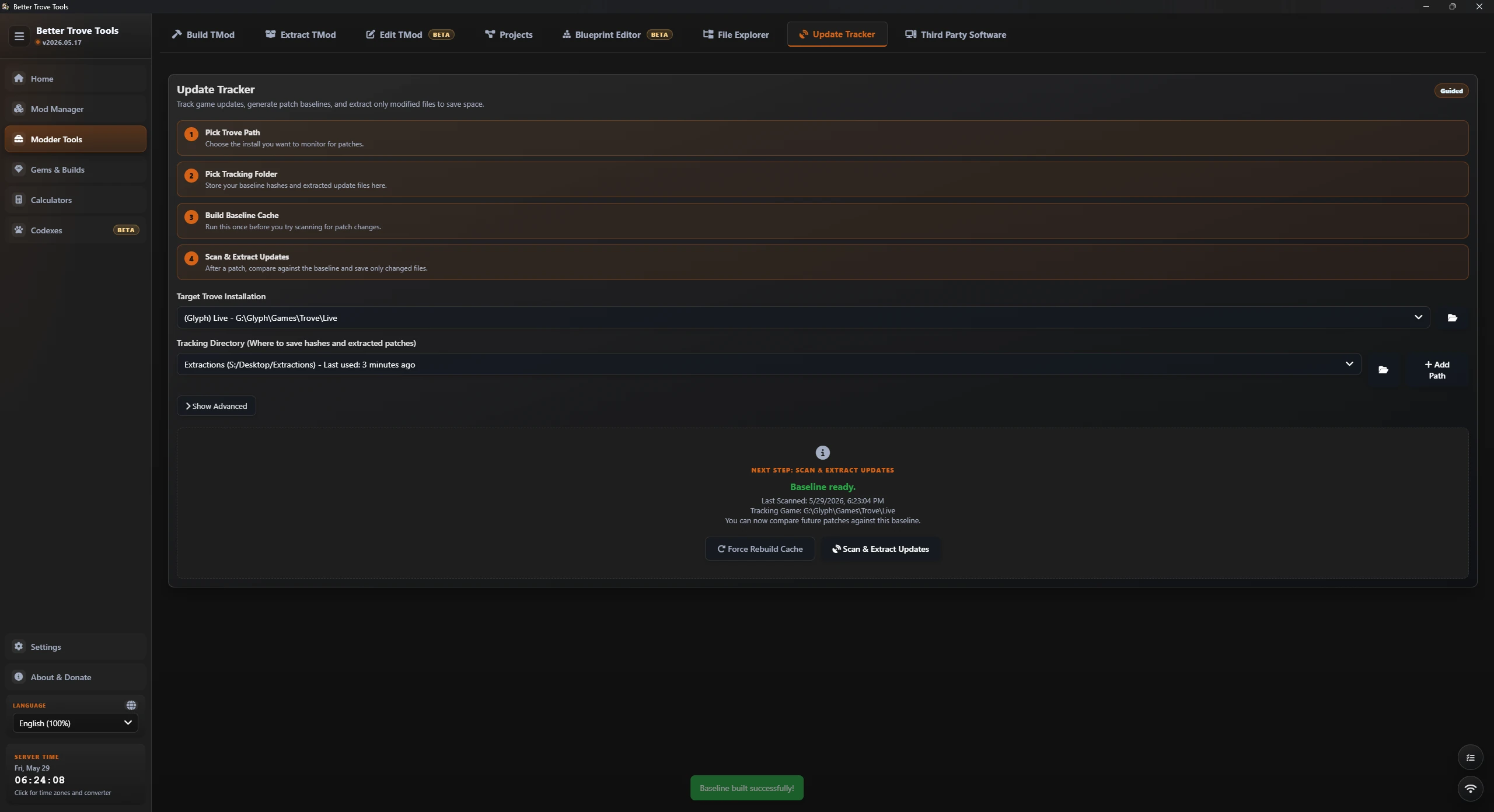
Find hidden content
Patch-to-patch diffing
How to track updates
- In the Update Tracker panel, choose a tracking folder where extracted files will be saved.
- Click Build Baseline Cache. The app fingerprints the game's tens of thousands of files into a "snapshot." This takes a moment, but only needs doing once.
- Wait for Trove to release a patch.
- Come back and click Scan for Updates.
What happens next
The app compares the game to your last snapshot, pulls every new or changed file into your folder, and writes a plain-text summary of what changed. Turn on Auto-Generate Blueprint Previews to also render images of new 3D models. Routine rescans skip unchanged files automatically, so they stay fast.
Settings & FPS
Tailor the app to your taste and manage your game installations from one place.
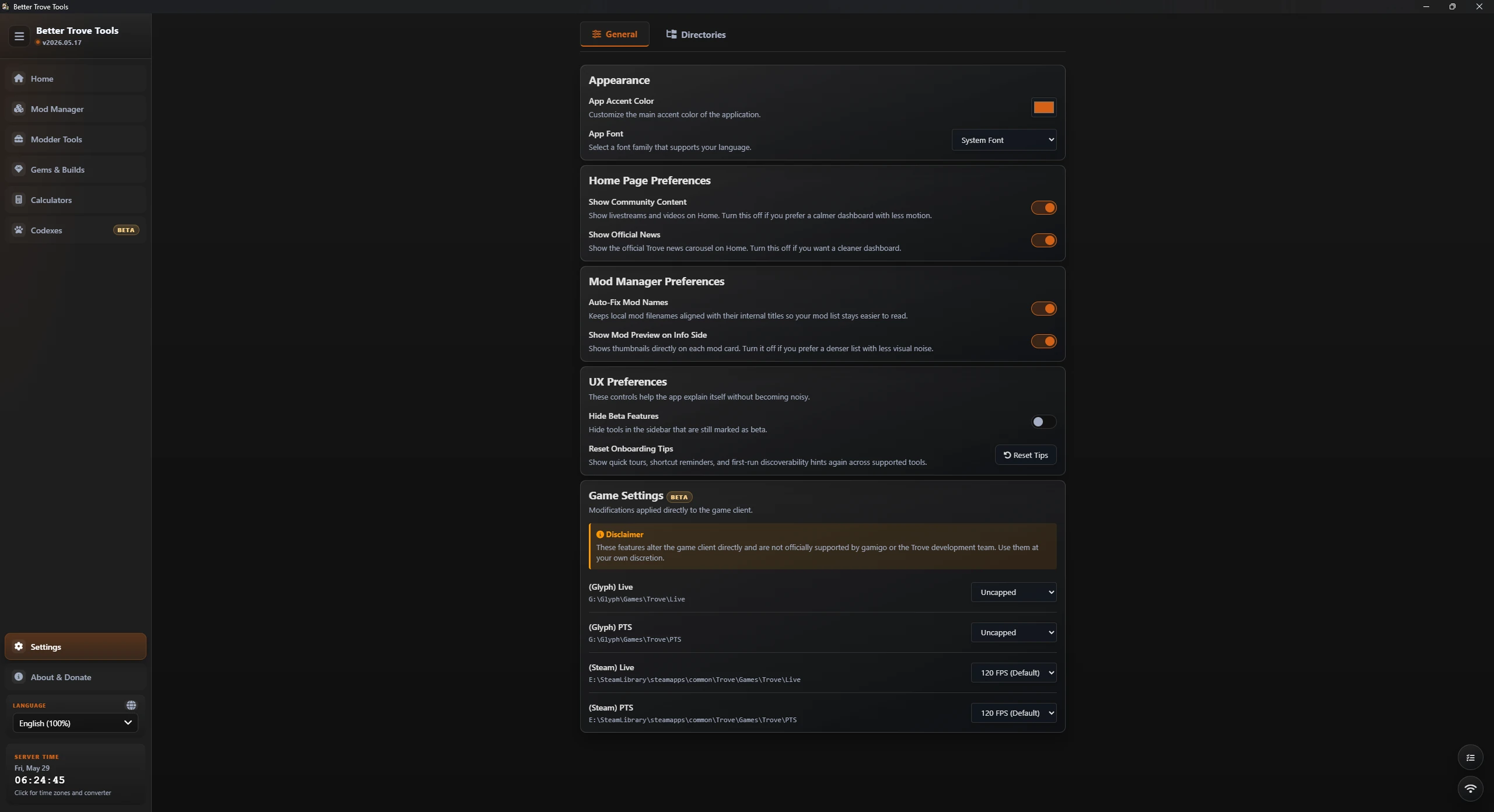
Make it yours
Appearance & installs
What you can change
- Custom Trove directories - add Live, PTS, or any custom install so every tool can target it.
- Accent color & app font - restyle the whole interface.
- Language - switch between 9 supported languages at any time.
- Home content toggles - hide community content or news for a quieter dashboard.
FPS cap patcher
Set the Trove client's frame-rate cap per installation - choose from 60, 90, 120, 144, 165, 180, 200, 240, 360, 540 FPS, or uncapped. The app edits the cap directly in the executable, keeps an automatic pristine backup, and flags an install for repair if the value can't be located.
Heads up
Changing the FPS cap modifies the game executable. The app backs up the original first, but always make sure the game isn't running when you apply a change.
Power Features
Small touches that make the app faster to drive once you know they're there.
Quick Open
Press Ctrl+K to fuzzy-search every tool and action and jump straight there.
Job queue
Long jobs like extraction and scanning run in the background with live progress you can monitor.
Request tracker
Every external network call the app makes is logged and visible - full transparency, local-first.
Self-update
New releases are detected automatically and installed with one click.
Troubleshooting & FAQ
Quick answers to the things people ask most.
The app says my Trove installation can't be found
Open Settings and add your install under custom directories - point it at the folder containing Trove.exe / Trove_x64.exe. Glyph and Steam installs are normally detected automatically; a custom directory covers anything unusual.
A codex is empty or out of date
Codexes are built from your installed game files and cached. Make sure the correct install is selected at the top of the codex, then use Refresh to rebuild it from the latest files after a patch.
An installed mod isn't showing up in-game
Check the Mod Manager for a conflict warning - if two enabled mods overwrite the same file, only one loads. Disable the conflicting mod. Also confirm the mod is enabled for the specific Trove install you're launching.
Building the baseline cache is slow
The first baseline fingerprints the entire game, so it takes a while - but only once. The work is spread across your CPU cores, and future scans skip unchanged files automatically, so they're much faster.
Does the app need to be online?
It's local-first. Tools that read your game files, manage mods, and run calculations work offline. Internet is only used for live community/news content, downloading mods, and update checks - and every external request is shown in the request tracker.